Showing posts with label BO Report. Show all posts

Sunday, 13 October 2013

Business Objects : Universe Design Scenario - Objects using Context

In last 3 posts, we have seen how to use Derived Table, Analytical Functions at Universe Object at Universe Level and Merged Dimension at Report Level.

Below are the links for the same

Derived Table -- http://gyaankatta.blogspot.in/2013/10/business-objects-universe-design.html
Analytical Function -- http://gyaankatta.blogspot.in/2013/10/business-objects-universe-design_13.html
Merge Dimension -- http://gyaankatta.blogspot.in/2013/10/business-objects-universe-design_6236.html

In this post, we will try to resolve same problem but this time using the Context at Universe level.

Before actually creating a new Universe, we will first analyze the scenario on the basis of which we will be defining the context.

We have Employees and Departments table [ we do not have Dimension and Fact tables separate] which are having pure 3NF relationship. We are going to use Dimension Modeling Concept on top of this 3NF layer.

Logically we have 2 separate paths
1. To get the Employee information along with Salary as a Fact
2. To get Departments information along with Salary as a Fact

Our logical model to implement this solutions is as follows..

At Universe Level, we will create 2 alias of Employee table for each fact table as described in above image.

We will define 2 contacts as follows
1. Employee Context -- We will have all Employee information from this context along with Employee Salary as a measure attribute. We will have join between Emp Dim, Emp Fact and Dep Dim
2. Department Context -- We will have all Departments information from this context along with Department wise Salary as a measure attribute. We will have a join between Dep Dim and Dep FACT table.

How will you create an Alias ?

You just have to select the table of which you want to create an alias.

Click on Insert Menu where you will get an option to create an Alias of a selected table.

Create 2 Aliases of Employees table with name as Emp FACT and Dep FACT respectively.


Final join between imported Tables and Aliases will be as below

Next task is to define Context for Employee and Departments information separately.

How will you create a Context ?

At Insert menu, you will have an option to create Context at Universe.

Once you click on the Context option, new window will appear, which will prompt you to give Context Name and select the joins which will participate in that context.

For our purpose, we will use below joins for 2 context.

1. Employee Context --

a. Join between Employees and Departments
b. Join between Employees and Employee Fact

2. Department Context --

a. Join between Departments and Department Fact


Once you define the context, next job is to create classes and objects.

As we have defined 2 context for Employee and Departments separately, we will create objects accordingly.

1. Employees class will have all Employee related Dimensions e.g Employee Id, First Name, Last Name etc.
2. Departments class will have Department related Dimensions e.g Department Id, Department_Name
3. Measure class will have 2 measure objects coming from 2 separate context.
   a. Salary_Per_Employee -- will come from Emp FACT table
   b. Salary_Per_Department -- will come from Dep FACT table.

Finally our Universe will appear something as below

We have done with Universe creation, next and final part is of creating a Report.


As soon as you pull the objects which are in 2 different context -- at Query Panel, BO Tool will create 2 separate queries, one from each context.

As you can see in a image, BO has created 2 separate queries.

1. Using Department Context, which will give Department Name and Salary_Per_Department
2. Using Employees Context, which will give Employee Information along with Salary_Per_Employee

 Ultimately tool will join results of these queries internally on the basis of common columns, in this case it is Department_ID

Note -- If you define the context, BO Tool will create 2 separate queries for you by its own and merge results of those on the basis common dimension internally. However, when you define 2 separate queries at BO by your own, you have to define / join result sets of those by defining merged dimension which we had seen earlier.

Business Objects : Universe Design Scenario - Merged Dimensions

In last 2 posts, we have seen a scenario of creating a sample Business Objects report using Derived Table and Analytical Functions. Links for those posts are as below respectively.

http://gyaankatta.blogspot.in/2013/10/business-objects-universe-design.html

http://gyaankatta.blogspot.in/2013/10/business-objects-universe-design_13.html

In this post, we will see how can we use Merged Dimension facility to create a report.

Our Universe will be very simple - we will not use any Derived Table or Analytical Functions. It will only have your source tables with Respective Classes / Objects created as below

As mentioned in above image, we will have 3 classes - one for each source tables as Dimension objects and one for Measure objects.

As per our reporting requirements, we have below 7 columns ready with current universe structure.

1. Employee_id
2. First_Name,
3. Last_Name
4. Email
5. Phone_Number
6. Salary
7. Department_Name

Remaining task is to have a Department wise salary which we will derive at report level.

In earlier 2 posts, at Report level we had created only 1 query; However, this time we will create 2 queries [ as we do not have Salary_Per_Department value coming directly from Source]

Query 1 -- All employee related information such as Employee_Id, First_Name, Last_Name, Email, Salary, Department_Id


Query 2 -- All departments related information such as Department_Id, Department_Name, Salary

Here, each query will give us separate result - first with Employee Information along with Salary and second with Departments Information along with Departments wise Salary.

Our task is too merge these 2 query results at Report Level


How will you merge 2 query results  ?

To merge results of 2 separate queries, you need to have some common dimension between 2. In this case the common dimension is Department_Id

Business Objects Reporting Tool will automatically identifies common dimensions between 2 queries [if you have selected same object from same universe] and term it as Merged Dimension at report query panel.


If you see in this image, Business Objects tool automatically separated Department_ID as Merged Dimensions from Query1 and Query2 respectively.

Our next task is to merge Employees and Departments reports together.

We will create 2 separate variable as below for Departments Reports.

1. Department_Name -- This will be a Detail objects which is related to Department_Id of Merged Dimension from Query 4

2. Salary_Per_Department -- This will be a simple measure object, related to Salary object of Query4


Detail Objects  -- Department_Name. If you are merging dimension objects from 2 different queries, then you need to create Detail Object and associate that object to parent dimension of respective query.

Measure Object -- Salary_Per_Department.

Now, we have all columns for our report are ready. Remaining report preparation task will be same as we have seen earlier.

Note -- Usually we merge 2 reports using merge dimensions to avoid universe level changes.

Business Objects : Universe Design Scenario - Objects using Analytical Function

In earlier post -- http://gyaankatta.blogspot.in/2013/10/business-objects-universe-design.html -- we had seen how can we use Derived Table while creating a Business Objects universe.

In this post, we will see same scenario and try to build same report; however this time instead of using Derived Table, we will import Source tables as is.

How is the universe Structure ?


So, this time instead of creating a Derived Table, we will import Source Tables - Departments and Employees - as it is.

Once you import these tables, you need to define the Relationship \ Join between these 2 tables.


As we need all records from Employees table, we have checked the Outer Join box for Table1 and the join between 2 tables will be based on Department_Id column which is common for both.

Once you define the relationship between 2 tables, create respective classes; Define separate classes to identify each subject area separately and also to identify Measure and Dimension objects.

So, we will create 3 separate classes,
1. Departments -- In which all Department's Dimension objects reside
2. Employees -- In which all Employee's Dimension objects reside
3. Measure -- In which Measure objects related to Departments and Employees will reside.

 Now, we have almost all objects [Dimensions and Measure] ready except Salary_Per_Department.

To derive Salary_Per_Department measure, we will use analytical function while creating a measure object. Business Objects allows us to use Analytical Functions at the time of Universe Creation.

We have done will all object and Universe Creation for our reporting requirement.

Next process of creating a report is same as we have seen earlier.

Note -- Creating a universe like this is better approach than the earlier once. By this approach we can use all columns from both Departments and Employees table and Universe structure will be simple.

Business Objects : Universe Design Scenario - Derived Table


Today we are going to see a simple Scenario using Employees and Departments table in HR schema [you will get this schema created automatically once you install ORCL or XE default databases from oracle].


Requirement -- We have 2 normalized tables Employees and Departments. Structure of tables are as below

We need a single report which will have columns as
1. Employee_ID,
2. First_Name,
3. Last_Name,
4. Email,
5. Phone_Number,
6. Salary,
7. Department_Name,
8. Salary_Per_Department,
9. % of Salary [Salary_per_Employee / Salary_Per_Department]


Universe Design -- Columns 1 to 6 are direct columns, coming from Employees table, even Department Name you can get directly from joining Departments table to Employees table; However, pain area is to get the value for Salary_Per_Department.


Before actually creating a universe, we will try to derive this report using SQL Query..


SELECT EMPLOYEE_ID,
FIRST_NAME,
LAST_NAME,
EMAIL,
PHONE_NUMBER,
SALARY,
DEP.DEPARTMENT_ID,
DEPARTMENT_NAME
FROM EMPLOYEES EMP LEFT JOIN DEPARTMENTS DEP
ON EMP.department_ID = dep.department_id;


As said earlier, first 7 columns will come directly from Source table; Now, to derive salary_per_department we will use Analytical Function, so the ultimate query will be like below.


SELECT EMPLOYEE_ID,
FIRST_NAME,
LAST_NAME,
EMAIL,
PHONE_NUMBER,
SALARY,
DEP.DEPARTMENT_ID,
DEPARTMENT_NAME,
CASE WHEN DEP.DEPARTMENT_ID IS NULL THEN 0 ELSE SUM(SALARY) OVER(PARTITION BY DEP.DEPARTMENT_ID) END AS SALARY_PER_DEPARTMENT
FROM EMPLOYEES EMP LEFT JOIN DEPARTMENTS DEP
ON EMP.department_ID = dep.department_id;


As we are ready with our report query, we will use the same at the time of Universe Design using it as a Derived Table.


How will you create a universe ?

If you have installed BO 3.0, then at Program File you will have a menu called "Universe Designer" [In case of BO 4.0 it is termed as Information Design Tool ]
After you login --
1. At top-left corner, you will have a menu to create a new universe. Once you click on it, new window will appear.
2. You need to give Universe Name which you are going to create.
3. Create a new Connection if you do not have it already.
4. Click OK.


Next step is to import the tables to the universe which you have created.


You will get options to import tables [using the connection, which you have specified at the time of universe creation]

Here, instead of importing a new table to your universe, we will create a Derived Table.

As query written above is sufficient for our reporting requirement, we will use the same query while creating a derived table.


How will you create classes and objects?

You need to create respective classes and objects for your report generation. You will create these at Universe itself.

Just drag your derived table to left window panel and automatically new class [name same as your derived table] with objects [all columns of your derived table] gets created.

All objects by default gets created as a Dimension, you can change their property to Measure or Detail as required. In this case we will change the property of Salary and 'Salary Per Department' to measure.

As shown in an image, you can change the property of a specific object as Dimension, Measure or Details depending on the requirement.


Now you have your universe with respective objects ready for the reporting.


How will you use universe for reporting ?

Normally you can use BO Infoview, BO Rich Client, BO Full Client for reporting purpose. For the sack of this reporting explanation I am going to use BO Rich Client.

At program files, you will have a installed menu called "Web Intelligence Rich Client".


Once you log into it, new window will appear which will prompt you [first option] to choose a universe for your reporting. Select the universe which you have just created.


Once you import a universe into Rich Client, new query panel will appear as above to create a new Report Query.

You can see same objects at left side panel which you have created at Universe. You need to drag your objects - as per your reporting requirement - to Results Objects panel and filters if any at Query Filters panel.


As per requirement, we have selected respective objects at Result Objects and Query Filters Panel and click on Run Query.

A report will get created with all records having department name as "Finance". Now the next task is to add a new column % of Salary [Salary_per_Employee / Salary_Per_Department] at Report level.


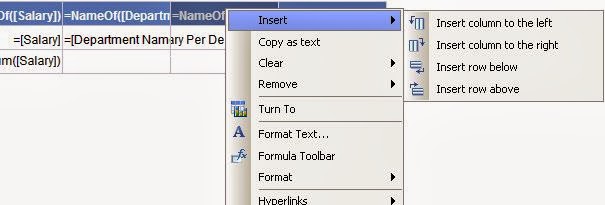
Right click on last column of a report and a popup will appear to add a new column; select "Insert column to the right" in this case

Once new column gets added, click "Ctr + Enter" -- new window will appear wherein you can enter a required formula i.e. Salary / Salary_Per_Department * 100

 
As shown in above image, write a formula in Formula Editor and click OK. 

All corresponding values will appear as per the formula specified in a new derived column.
You can find sample universe and report explained in above example at below URL.

Note -- We have not added original Employees and Departments table at Universe just for sack of this example. By not adding these tables to universe, we have actually restricted the report functionality which is now limited only to the objects available in Derived Table. As a general practice, I have seen people do not use \ or try to avoid the use of Derived Table in universe.